
Create an account and sign in
Use an email code or Google to access TeachKit without a password.
Create your account
Choose Create a free account from the sign-in screen. Enter your First name and Email address, then choose Learning or Teaching under What brings you to TeachKit? Select Email me a code.
If you arrived from a class link, keep that registration flow open so TeachKit can return you to the class. Choosing Learning creates a student account; creator tools appear after you start teaching.
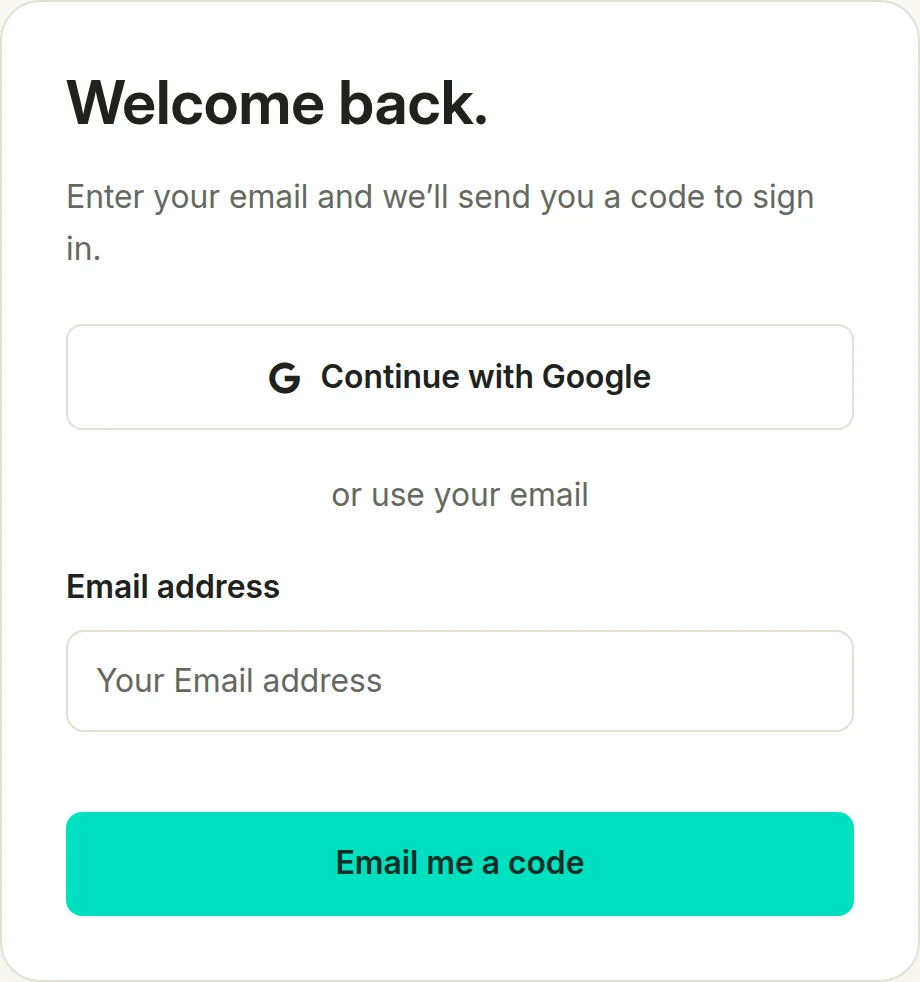
Sign in with a code
- Enter your email and select Email me a code.
- Open the latest TeachKit sign-in email.
- Enter the six-digit code on Check your inbox and select Sign in.
The code expires after 10 minutes and cannot be reused. You do not need a TeachKit password. Continue with Google is also available on the initial sign-in screen.
If the code does not arrive
Check the email spelling and spam folder. Wait for the resend countdown, then choose Resend code. Use the newest code and keep the sign-in page open. Use a different email takes you back to correct the address.
If human verification is requested, choose Complete human verification to continue and finish it before trying again. If you have made many attempts, wait for the displayed cooldown.
An incorrect, expired, or already-used code will be rejected. Request another rather than trying an old one repeatedly. Never share your sign-in code with anyone, including support.