
Set a registration window
Control when new students can enroll, with explicit opening and closing times.
Open your class and choose Registration. These settings control new enrollment, separately from your lesson order and class status.
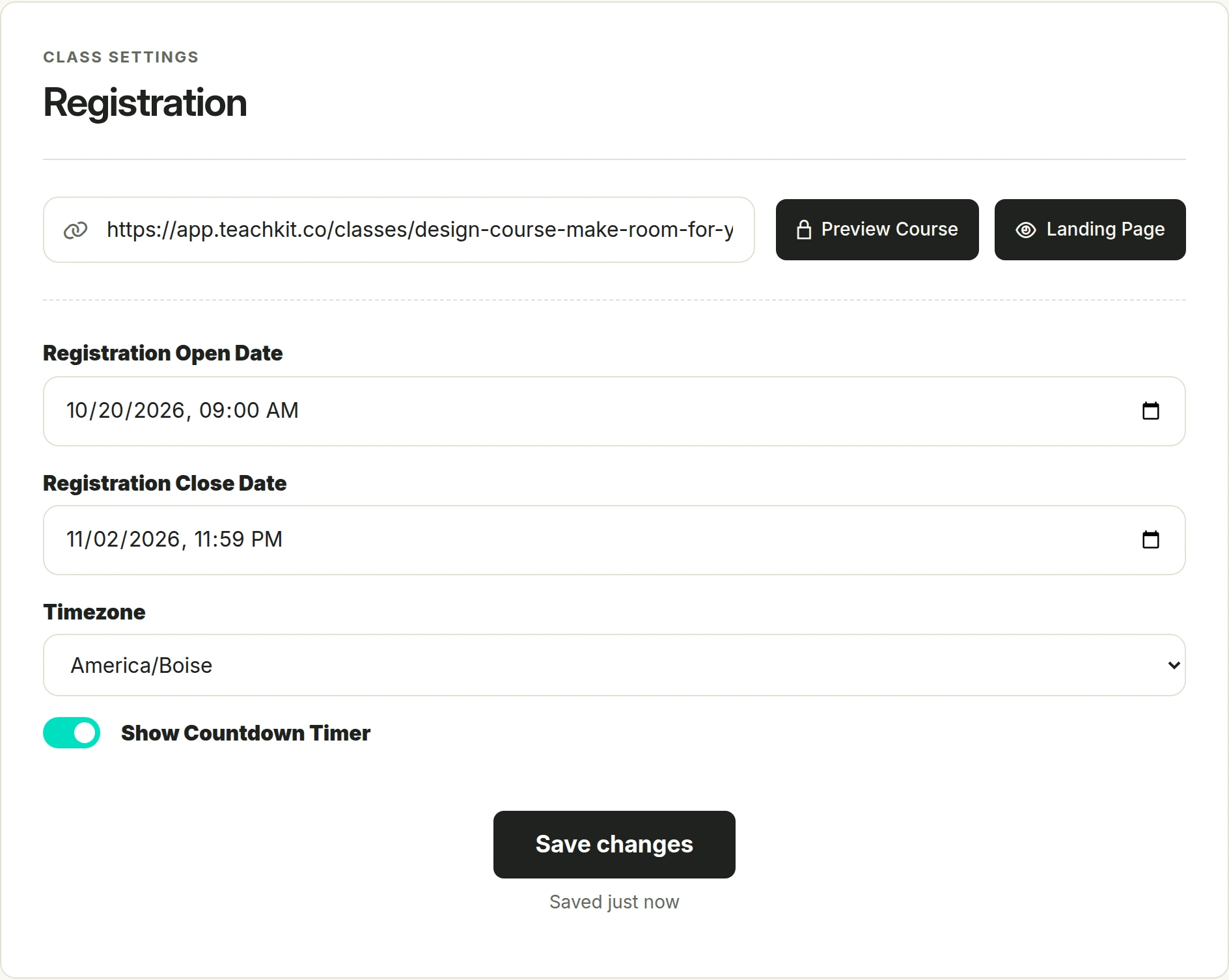
Set the window
- Enter Registration Open Date if enrollment should begin at a specific time.
- Enter Registration Close Date if enrollment should end at a specific time.
- Choose the Timezone that applies to those dates and times.
- Optionally enable Show Countdown Timer.
- Choose Save changes.
You can leave either date blank. With no opening date, there is no scheduled start restriction. With no closing date, there is no scheduled end restriction. If you set both, the closing date must be later than the opening date.
Status still matters
The class must be Published for new registration to open. A scheduled opening date does not publish a draft, and a date window does not override a manually Closed status.
Outside the window, the public class can appear closed to new students even though its saved status is Published. Opening and closing dates control enrollment; they are not lesson-release dates and do not remove an existing student's enrollment.
Check before sharing
Review the saved dates after changing the timezone. Use the public landing page to check the current registration state. If the window is wrong, confirm the year, date, local time, and timezone, then save again.
A rejected save can mean the closing date is not later than the opening date or that a date or timezone is invalid. Correct the values rather than repeatedly submitting the same window.